Daily free minutes, and a way to ask for more.
Updated 2026-09-12
Free minutes are the screen time your child gets every day without doing anything for it: one amount for weekdays, one for the weekend, both set by you. They are used first. Only when they run out does your child spend coins, and when the coins are gone too, there is a button to ask you for more.
The ask goes to your phone as a request, not to your ear as a whine. You say yes or no in one tap, and a weekly recap tells you how often it happened.
One subscription for the whole family.
How it works
- 1
Set the daily free minutes
Choose an amount for weekdays and another for the weekend, per child. Zero is allowed for a family where all screen time is earned; 30 or 60 minutes is purely an illustrative example. Change it any time from your settings.
- 2
Free minutes go first, then coins
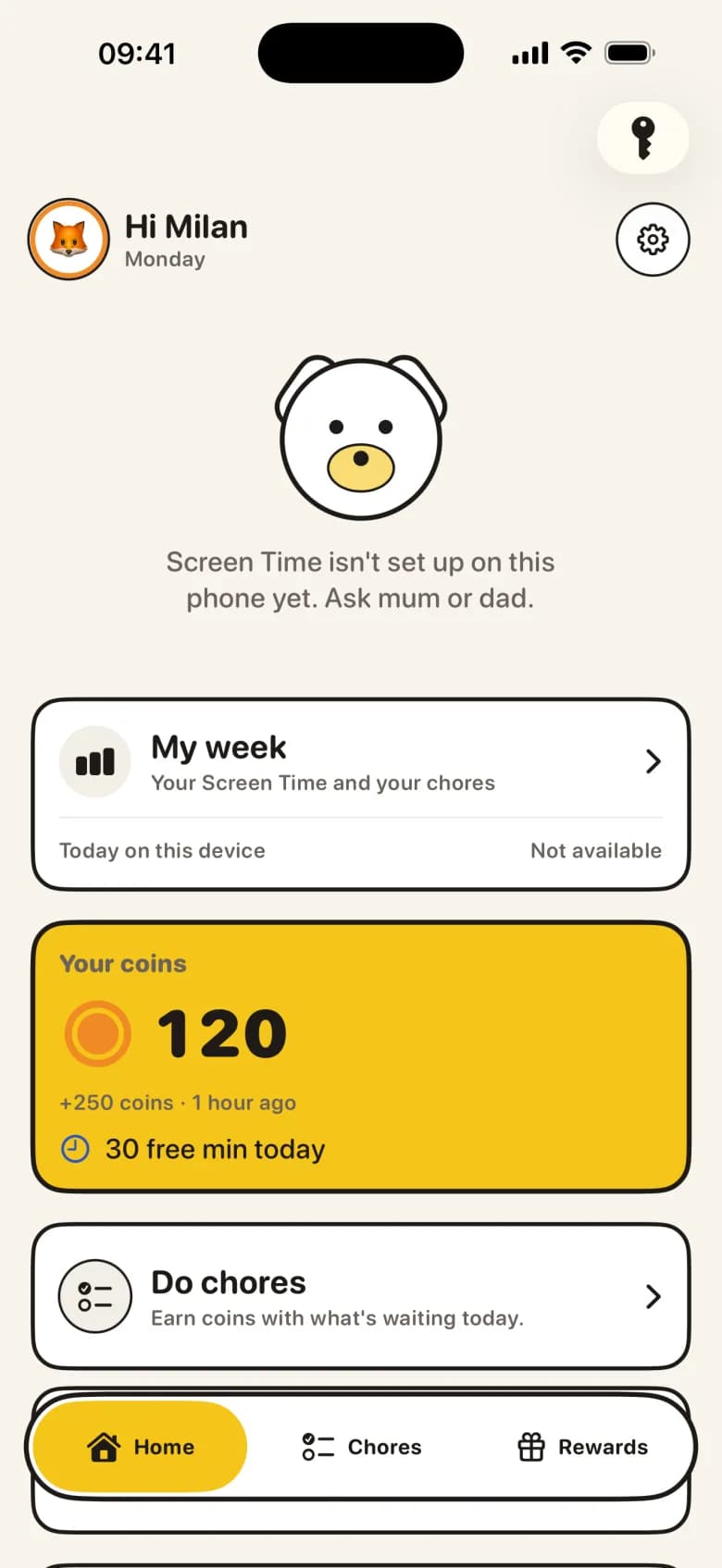
When your child starts screen time, the free minutes are used before a single coin is spent. The wallet shows the two numbers side by side: free minutes today, and coins.
- 3
They ask for more
When both are gone, the shield on a locked app and the wallet offer one button: ask for more screen time. The request lands on your phone with the child's name, provided both devices have a network connection.
- 4
You answer with one tap
Grant the extra time or leave it. Nothing changes on the child's phone until you decide, and a granted request opens the apps for the minutes you gave.
What happens on your child's phone
The wallet always shows free minutes today and coins as two separate numbers, so your child knows what is theirs and what still has to be earned. Starting screen time is a single tap: free minutes run down first, then the timer switches to coins at your family's rate. Pause keeps the remaining minutes; Stop ends the session and keeps whatever was not used.
Free minutes reset every day and do not carry over. Bought minutes do: a session your child stops early keeps its balance until they start again, unless locked hours or family time step in first. Those always come before any timer.
What you see as the parent, and the weekly recap
A request requires network delivery to arrive as a notification and as a card on your home screen. You see who asked and can grant time or dismiss it. On Sunday evening a single message says your weekly recap is ready: tasks handed in and approved per child, coins earned, screen time used, and how often each child asked for more.
That last number is the useful one. If a child asked five times in a week, KlusQuest says so and suggests you look at their free minutes. The recap gives you the number; you decide what it means.
If Screen Time access could not be granted on the child's device, KlusQuest runs in voucher mode. Free minutes and bought minutes still exist and are still counted, but they become vouchers you honour yourself rather than a lock the phone enforces. Everything else works the same way.
What is deliberately not there
- No automatic yes — A request for more time is never granted by the app. It waits for a parent, every time.
- No overdraft — When free minutes and coins are both gone, the only options are a chore or a request. The balance never goes negative.
- No rollover of free minutes — Today's allowance is for today. Saving up happens with coins, which are earned, not with the allowance, which is given.
- No usage detail sent to you — The recap tells you how much screen time was used and how often more was asked. It does not list which app, which video or which chat.
What you need
- KlusQuest on your phone and on your child's own iPhone or iPad — iOS 17.4 or later on both.
- Screen Time access on the child's device for a real lock — Without it KlusQuest switches to voucher mode: minutes are counted as vouchers you honour yourself.
- Notifications allowed on your phone — Requests for more time and the Sunday recap arrive as notifications. With notifications off they still appear on your home screen, just later.
Questions parents ask about free minutes
How many free minutes should I give?
There is no universal limit for children. Setting 30 minutes on weekdays and 60 at the weekend serves purely as an illustrative example; you can look at the recap after two weeks and adjust. Zero is a valid choice if all screen time should be earned.
Do free minutes count during locked hours?
No. Free minutes can only be used outside locked hours and family time, like coins. A window starting mid-session pauses the timer and keeps the remaining minutes.
Can I give a one-off gift of time without changing the allowance?
Yes. Granting a request adds minutes for today only, and you can also gift coins with a reason from the child's card. Neither changes the daily amount.
What does the weekly recap contain?
One message every Sunday evening: tasks approved, coins earned, screen time used and requests for more, per child. No per-app detail, no message content, no location.
See the App Store for the current purchase options for your region.