Locked hours for school, bedtime and dinner.
Updated 2026-09-12
Locked hours are the part of KlusQuest that runs without you. Set school, bedtime and dinner once, and the apps you chose lock on your child's iPhone or iPad at those times, however many coins they have earned. When the window ends, any paused session can resume.
Coins never override a locked window. Earned minutes wait until the window closes, so the deal stays honest: screen time is earned, and school and sleep are not for sale.
One subscription for the whole family.
How it works
- 1
Start from three presets
School hours, bedtime and dinner time come ready to switch on. Each preset has days, a start time, an end time and an app group. Change any of them or turn one off; a family with a late dinner drags the window an hour later.
- 2
Choose games only, or everything
During setup on your child's phone, KlusQuest asks which apps to lock. Apple's picker sorts them into two groups: games and entertainment, or everything you select. School hours usually lock the first group; bedtime usually locks the second.
- 3
Add windows as your week needs them
Up to six scheduled windows cover the odd shapes of a real week: a Wednesday afternoon, a weekend morning, a longer bedtime on school nights. A seventh switch, study time, is manual: on when the homework starts, off when it is done.
What happens on your child's phone
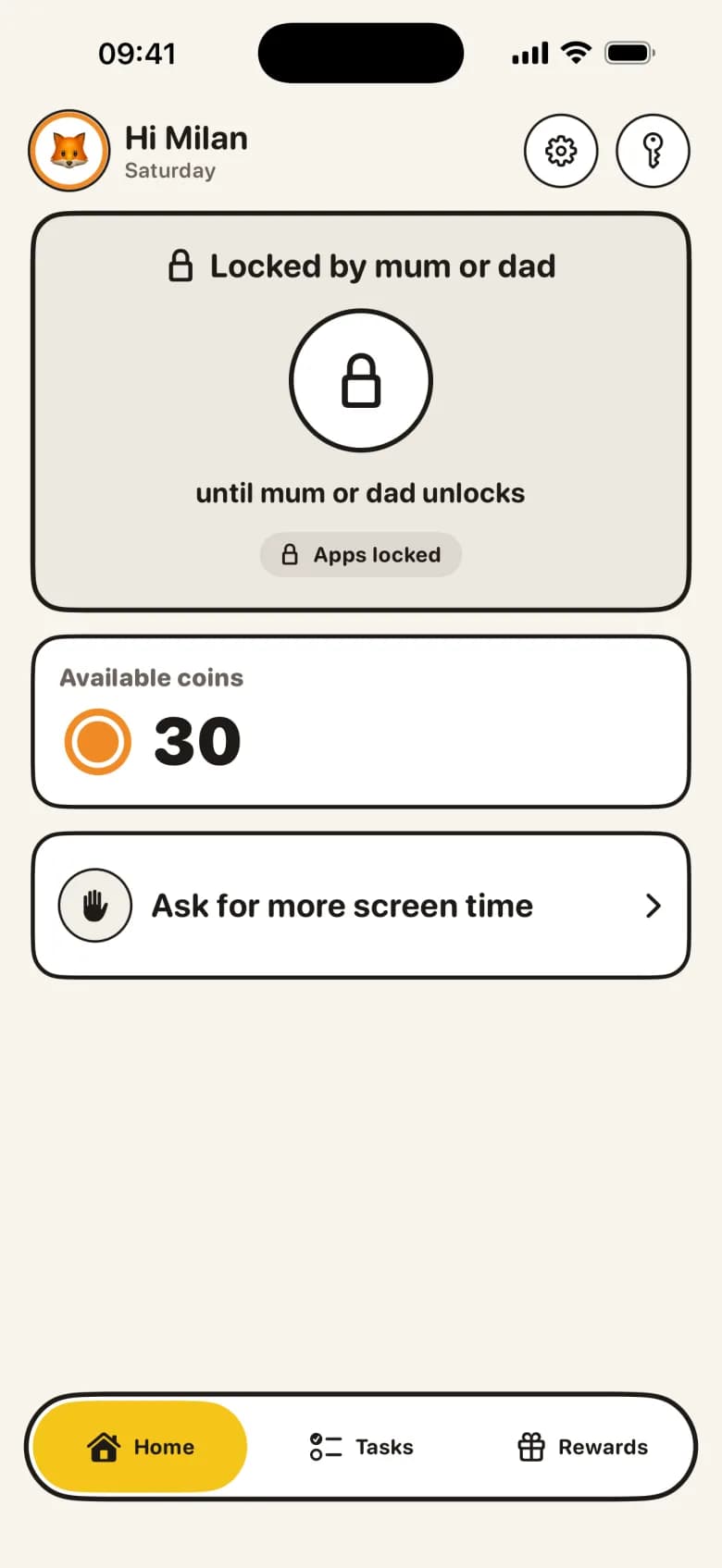
When a window starts, the chosen apps get Apple's shield. Tapping one shows a short KlusQuest message with the reason and the time it opens again, for example "Bedtime until 07:00" or "Study time". The screen-time timer cannot start during a window; the wallet says when it can, so there is no point in asking.
KlusQuest itself stays reachable during a locked window, so the task board and the wallet keep working. Which of Apple's own system apps remain available is decided by iOS, not by KlusQuest.
Locked hours and family time always come first. If a window begins while a bought session is running, the session pauses and the unused minutes stay in the wallet.
What you see as the parent
Each child on your home screen carries a mode pill: free time with minutes left, locked, bedtime until a given hour, or study time. You see whether a window is on at a glance and you do not have to open the child's phone to know.
The apps themselves are picked on the child's phone, because Apple only shows its app picker on the device that will be locked. The child's phone shows the hours under locked hours, so there is no surprise at 21:00.
What is deliberately not there
- No way to buy out of a window — Coins buy minutes outside locked hours, never inside them. A big balance does not shorten bedtime.
- No profile and no VPN on the child's phone — Locked hours use Apple's Family Controls only. Nothing routes your child's traffic anywhere.
- No web filter and no location — Locked hours decide when apps are available. They do not look at what your child reads, sends or where they are.
- No lock on KlusQuest itself — The task board stays open during a window, so a chore done at 20:30 can still be handed in.
What you need
- The child's own iPhone or iPad on iOS 17.4 or later — Windows run on the device itself through Apple Screen Time.
- Screen Time access granted once during setup — A parent holds the child's phone, enters the parent code and accepts Apple's Screen Time prompt. KlusQuest never asks for the Screen Time passcode.
- A child Apple Account in Family Sharing (recommended) — It adds guardrails to help restrict app deletion, though a child Apple Account is not a guarantee against all bypasses. On a personal account locked hours work, but your child can delete KlusQuest.
Questions parents ask about locked hours
What is the difference between locked hours and family time?
Locked hours repeat on a schedule and run on the child's phone by themselves. Family time is a one-off lock you start with a tap on your own phone for 30, 60 or 90 minutes, or until you lift it. Remote lock requests require network delivery to take effect and cannot immediately lock offline devices.
Can my child still hand in homework during study time?
Yes. KlusQuest stays reachable during every window, so the task board, the photo and the hand-in work as usual. Only the chosen apps are shielded.
Do bought minutes disappear when bedtime starts?
No. A running session pauses and the remaining minutes stay in the wallet. Purchased minutes stay your child's until they use them.
Can I set different hours for the weekend?
Yes. Every window has its own days. A common setup is one bedtime window for school nights and a later one for Friday and Saturday, with school hours on weekdays only.
See the App Store for the current purchase options for your region.