How KlusQuest works: mission board, photo proof, approve, screen time
Written by the KlusQuest team · Checked on
KlusQuest is parental control that works through chores. Your child sees missions on a mission board and ticks a chore off, with a photo as proof if you ask for one. You approve with one tap or send it back with a tip. The minutes they earn open the apps you chose through Apple's Screen Time, then lock them again.
Below we follow one chore from start to finish with real screens from the app, and finish with the things KlusQuest cannot do.
Chores first, then screen time. You set the missions, approve with one tap, and the app says stop.
The whole loop in five steps
- You set a mission
- Your child ticks it off, with a photo if you ask
- You approve or send it back
- The chosen apps open
- Minutes used or locked hours: locked again
What does your child see, and what do you see?
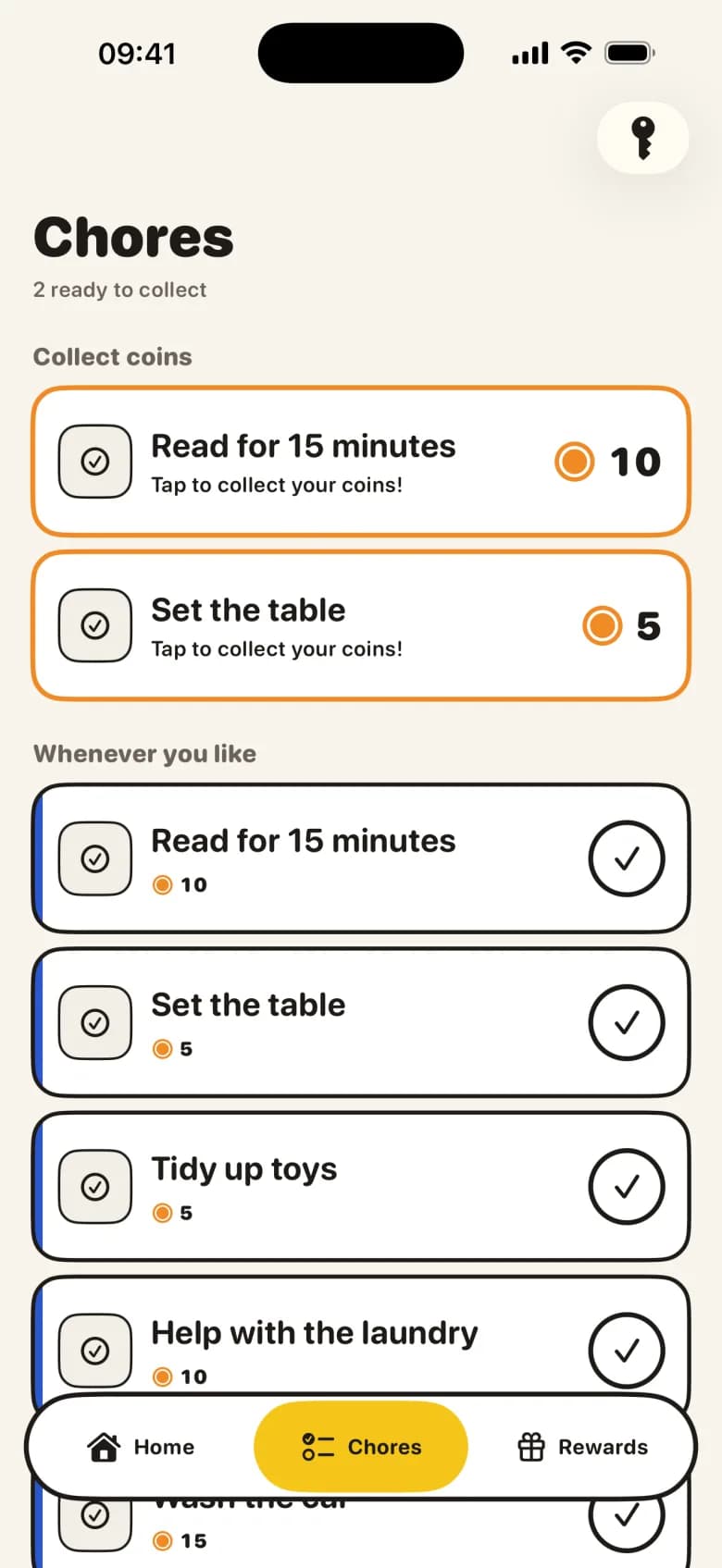
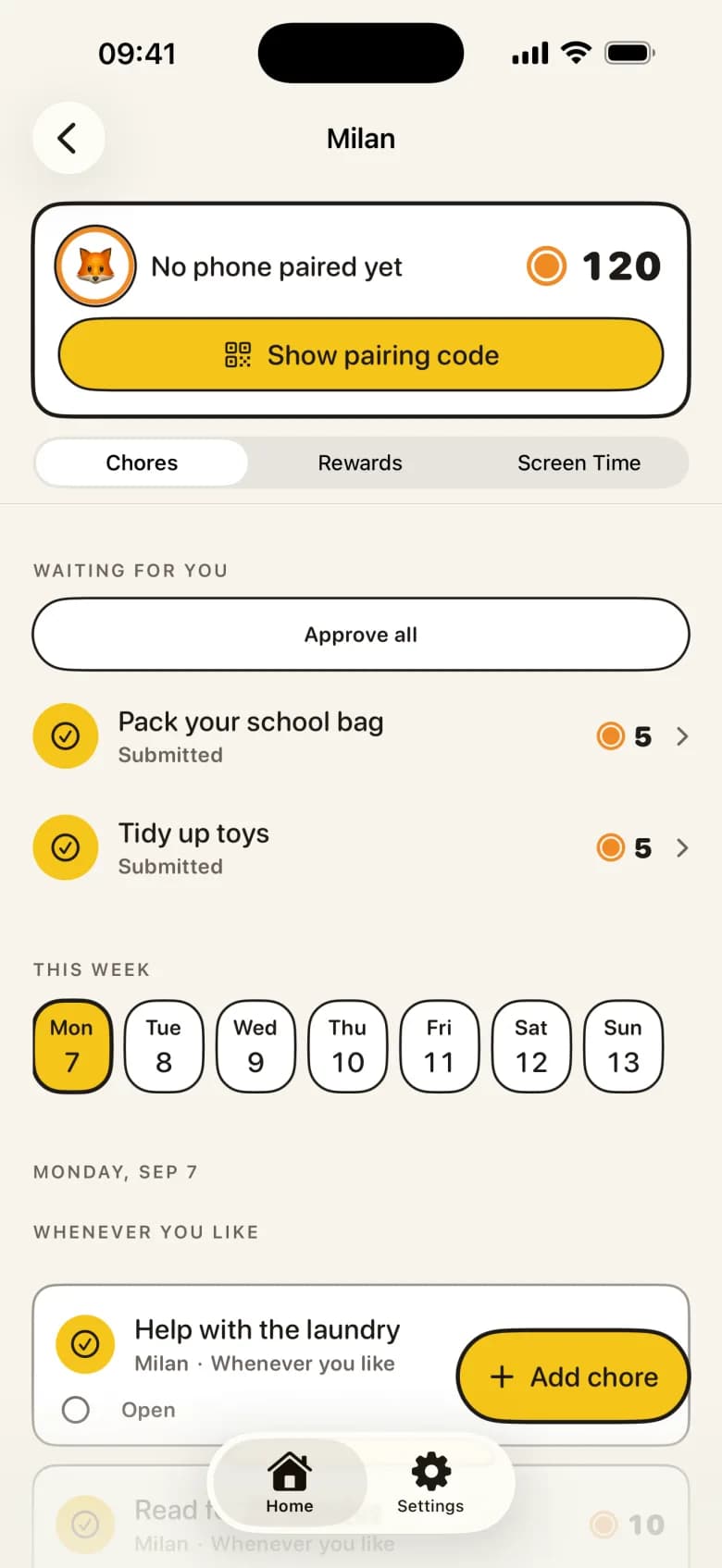
Step 1: a mission board your child checks on their own
Your child's own iPhone or iPad shows a short mission board: what is waiting today, and what you have already approved and is ready to collect. You stop repeating yourself, because they look for themselves. You write missions yourself or start from examples by age.
Parent and child each get their own screens. If you share one device, the parent area sits behind a PIN: tap the key icon and enter your code.
Step 2: photo proof, when you want it
You decide per chore whether a photo belongs with it. For one chore a photo is required; for another it is welcome but optional.
Proof photos are kept only while a chore is waiting for review. After your decision KlusQuest deletes the cloud copy, and each device deletes its own copy at its next sync. The original photo in the photo library is not deleted.
Step 3: approve with one tap, or send it back with a tip
Submitted chores appear on your screen under 'Waiting for you'. One tap approves; 'Approve all' clears the whole list. Not quite done? Send it back with a tip so your child knows what is missing.
Nothing approves itself. Your child only receives the coins after you say yes, and from then on they are theirs.
Step 4: screen time opens, and closes again
You decide how many minutes of screen time one coin opens. Each day starts with the daily minutes you set, separately for weekdays and weekends, and those cost no coins. When they are used up, your child swaps coins for extra minutes. When they start their time, the apps you picked open through Apple's Screen Time; when the minutes run out, those apps lock again. The app says stop, not you.
During locked hours, such as school time, bedtime and dinner, the chosen apps stay locked even if minutes are left. Your child can ask for more time; you decide.
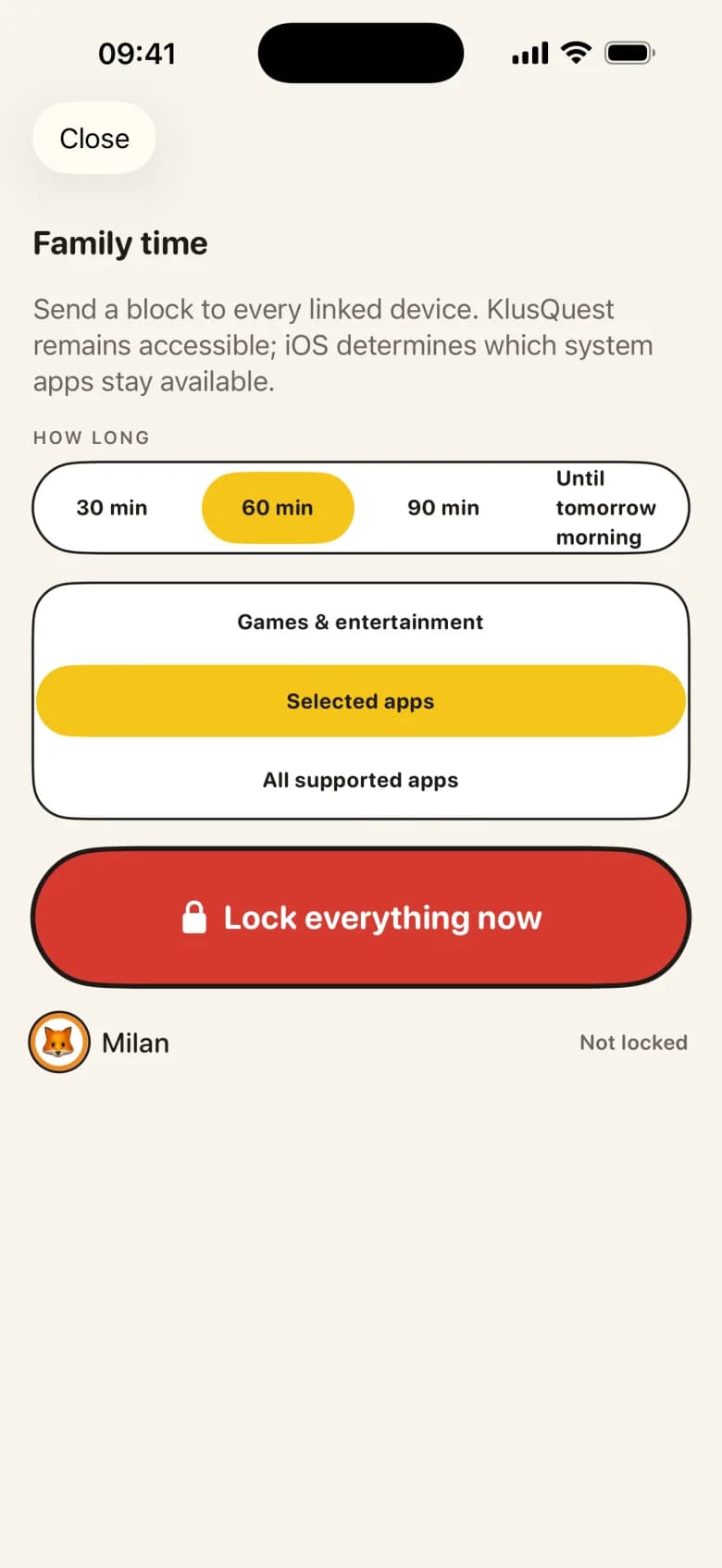
Step 5: together as a family
Your child's device, yours and your co-parent's stay in sync. You link a co-parent with a code, and they get the same parent view. When a mission is waiting, you can send a gentle nudge at a moment you choose.
Rather not use Apple's Screen Time? Then everything works as a voucher: earned minutes become credit you hand out yourself.
What KlusQuest can't do
- iPhone and iPad only — iOS 17.4 or later. There is no Android version.
- The lock lives on your child's device — Your child needs their own iPhone or iPad. Your phone controls; it never locks itself.
- It runs on Apple's Screen Time — With a Child Account in your Family Sharing group, you confirm the permission on your child's device. With an ordinary Apple Account it also works, but your child can delete the app.
- You set the rules on your phone; the app choice is made on your child's — You set locked hours and daily minutes for each child in KlusQuest on your own phone, and they sync to your child's device. You can also change them on your child's device, behind the parent code. Which apps lock is chosen only on your child's device, because Apple keeps that selection there.
- Some system apps always stay available — During family time, iOS decides which system apps remain available. KlusQuest itself stays reachable.
- No filtering, no monitoring — KlusQuest does not read messages, track location or filter websites. Age ratings belong in Apple's Screen Time settings.
Questions parents ask
What if my child skips a day?
Nothing happens. An undone chore expires; no coins are taken away and a missed day is never punished.
Who approves the chores?
You, or your co-parent. Nothing approves itself.
Are there ads?
No. No ads, no loot boxes and no bank linking.
What ages is KlusQuest for?
Families with children aged 7 to 18 who have their own iPhone or iPad.
Related guides and tools
Spotted a mistake? Email support@klusquest.com and we will correct it.
Chores first, then screen time. You set the missions, approve with one tap, and the app says stop.